Using INATrace
agstack/inatrace-frontend
·
docs/user-interface.mdEdits belong in that repository, not in
agstack/docs.
Licensed under
MPL-2.0,
not this site's CC BY-SA 4.0.What a user sees on the way in: the public welcome page, registration, and the home screen each company lands on.
Welcome page
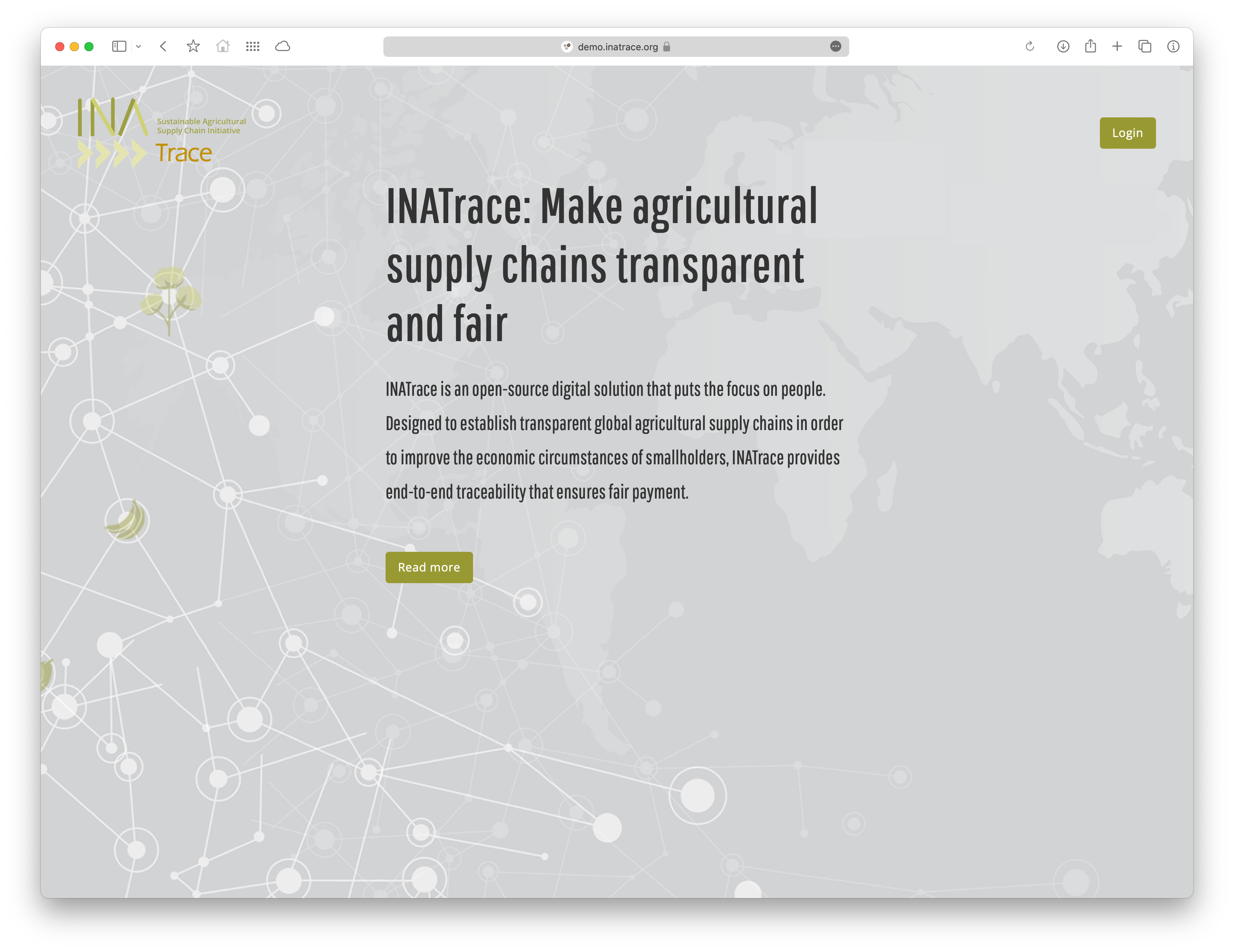
This is the welcome page at inatrace.org . From here, existing users can login by clicking “Login” in the top right corner. New users can click on “Read more” button, where they can get more info on how to get registered.
Registration
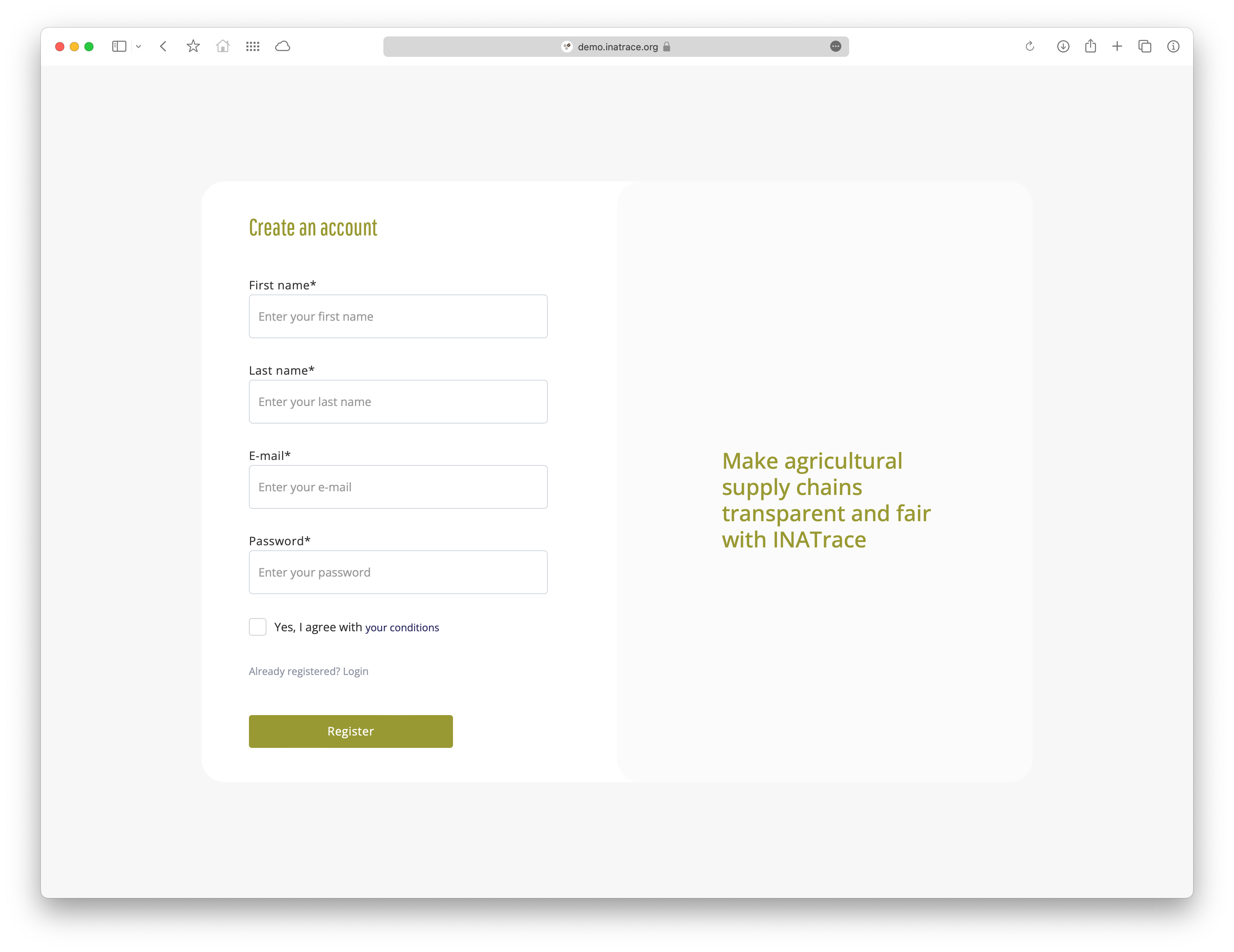
New users must enter their name, surname, email and password. The terms and conditions have to be accepted. The submitted email address receives a confirmation link to confirm the email address. After confirming the email, a system admin must activate the account.
Home
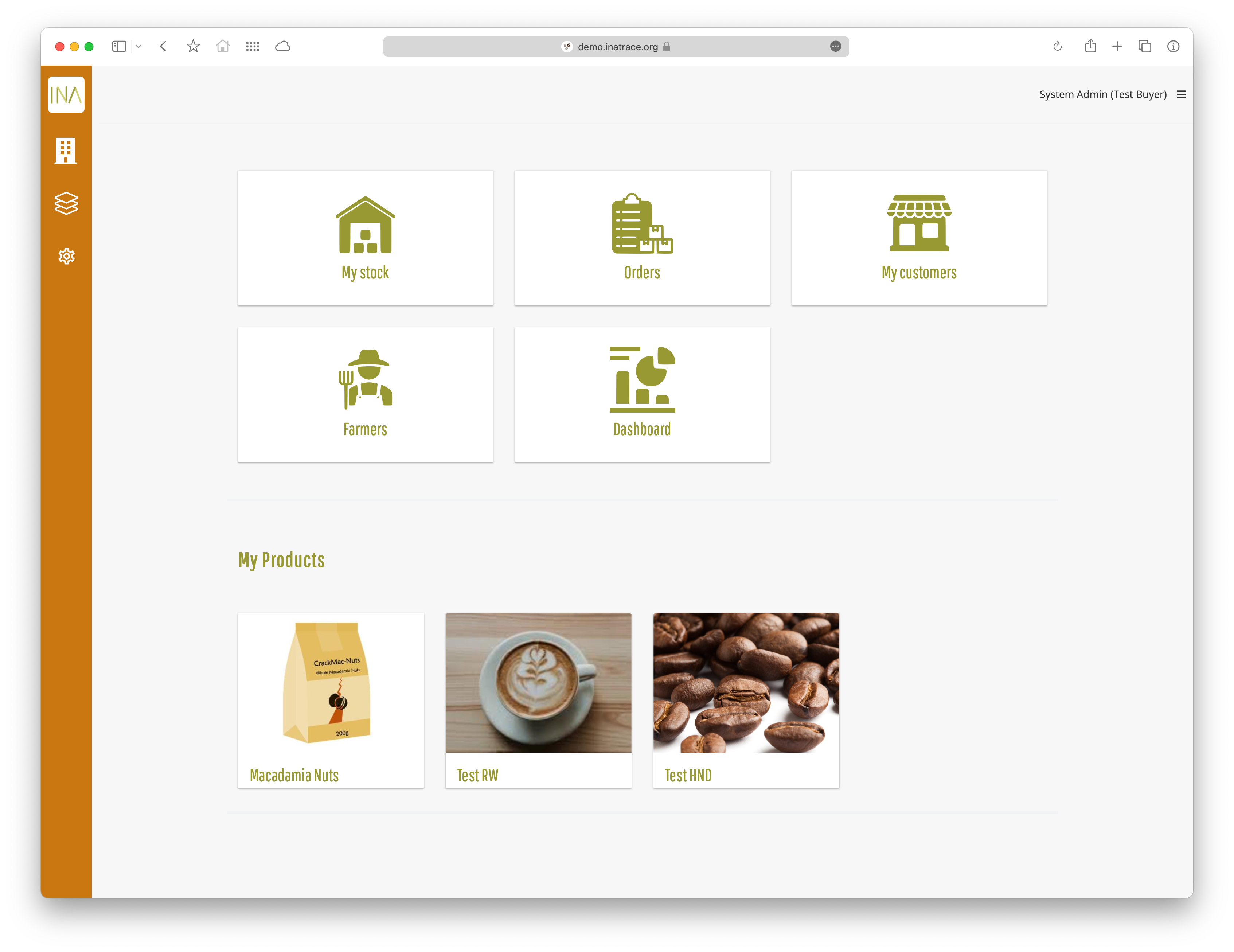
This is the home page. In the left sidebar from top to bottom, we have the following links:
- Home
- Company
- Products
- Settings (System admin and Regional admin only)
The current user’s products are displayed in the center, along with quick access links to stock, orders, customers, farmers, collectors and dashboard. Collectors quick access is shown only if the current user company has facilities that work with collectors. Customers quick access is shown only if the current user company has “Buyer” role in any Product. In the top right corner, an expandable menu contains quick links, user profile settings and a logout button.
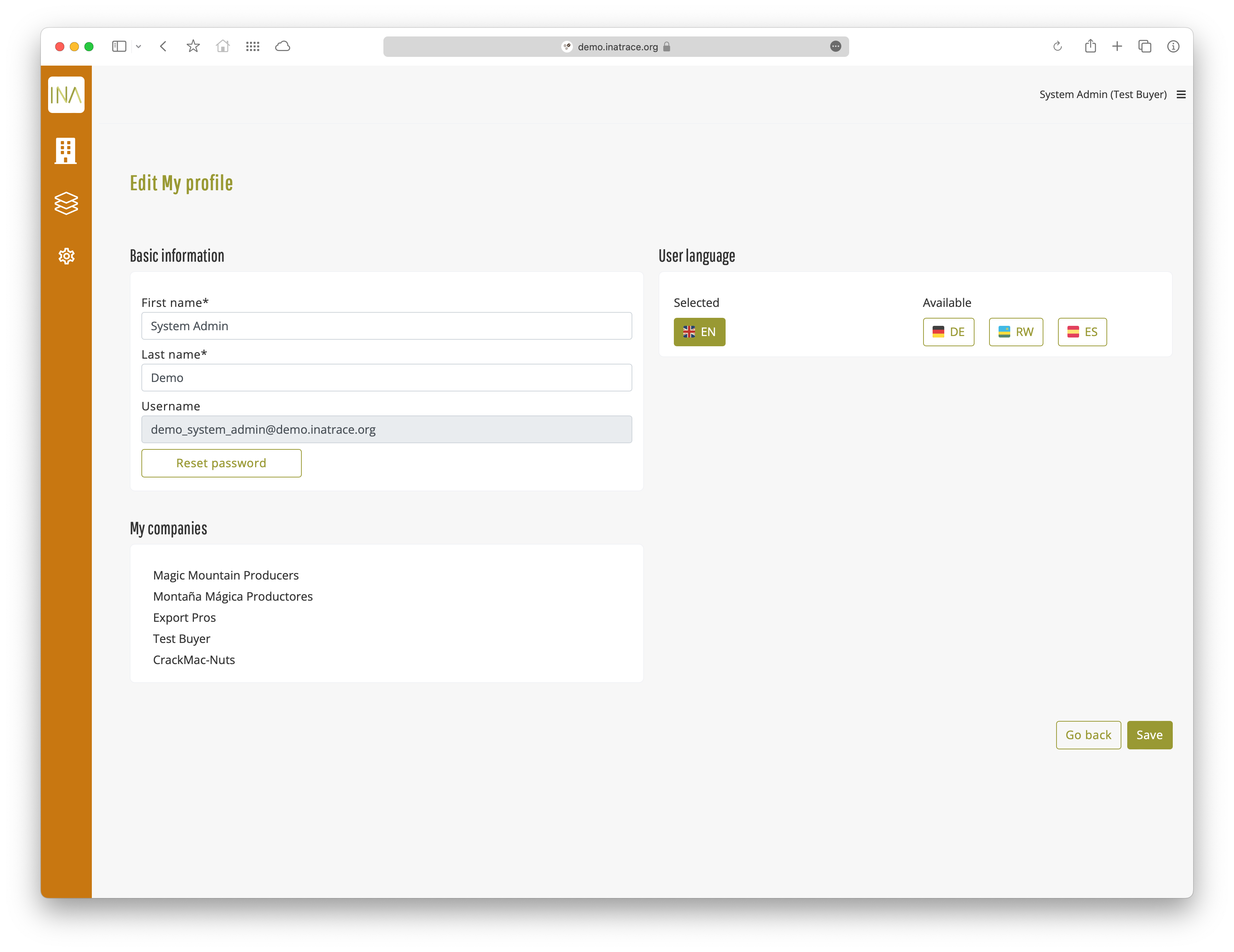
If the user has multiple companies, an active company can be selected in the “User profile” section.